One of the questions I have been asked multiple times these past
few weeks is how to convert a PDF into an editable document to post
in Google Classroom. It is a little work up front, but then you will
have it ready for future digital use through Google Classroom
instead of printing.
First take a screenshot of your PDF. On your chromebook press:
- Ctrl + []]] to take a screenshot of the entire screen.
- Ctrl + Shift + []]] to take a screenshot of a specific portion of your screen.
 Save as an image to your Google Drive
Open Google Slides and remove any text on the slide.
Right click (or two finger tap on the track pad of your chromebook)
Click on "background" then "choose image."
Click on "background" then "choose image."
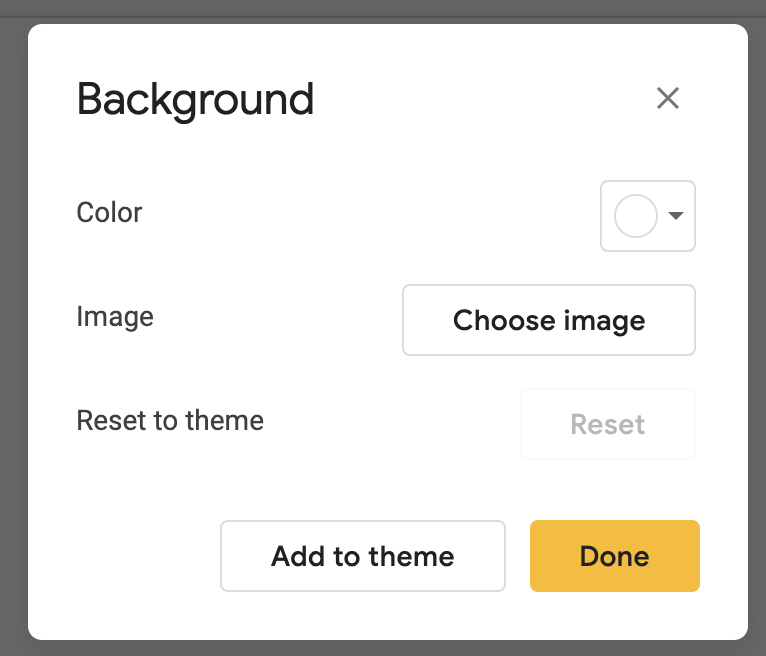
Choose the image you just saved to Google Drive and "insert."
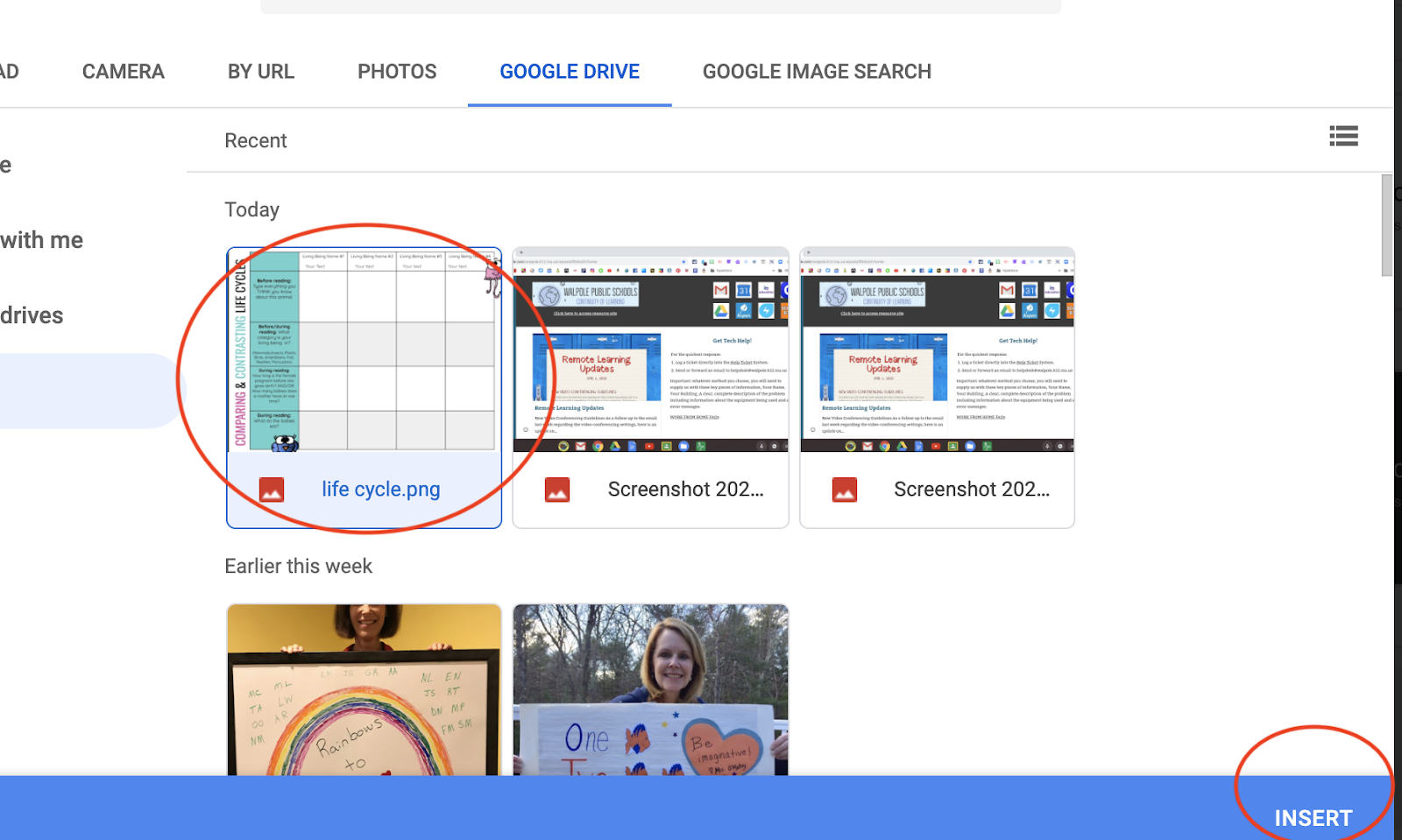
Now your image is locked on the screen
Add as many text boxes as you like by clicking on "insert" and then "text box"
where you want your students to write.
Add as many text boxes as you like by clicking on "insert" and then "text box"
where you want your students to write.

To share with students, assign this Google Slide with Google Classroom.
Make sure to choose the "make a copy of each student" option from the
drop down menu. Now your PDF is a virtual worksheet!
Make sure to choose the "make a copy of each student" option from the
drop down menu. Now your PDF is a virtual worksheet!

No comments:
Post a Comment