Tuesday, April 28, 2020

Tips for Video Conferences and Creating Learning Videos

Now that we are experts at video conferencing and some of us are creating videos with new curriculum content, I thought I would share some tips. 

Keep is Short and Simple

Typically an elementary video is not more than 5 minutes. A good thumb rule for Middle and HIgh School is not more than one minutes per grade. 

Use as Many Visual Cues as Possible

This is especially true for younger students, but the more you can show your audience, the better their understanding will be. There is a “whiteboard” feature in Zoom videos, Google offers Jamboard, and there are some other whiteboard apps like AWW and Explain Everything.

Do Not Overload Slides with Content

If you are presenting a Google Slideshow, be sure there is not too much text on one slide.  Your audience will not be listening to you because they will be trying to read everything on the slide. 

Use More Energy Than You May Think is Necessary

Keeping students engaged in a learning video is more difficult than teaching them in person because you don’t know what distractions are happening around the student. 

LIGHTING

To me, a key point is the lighting. You don’t need any fancy lighting, just make sure your main light source (window, lamp) is IN FRONT of you, not behind you. Light behind you will make the images you want students to notice, harder to see. 

Good luck and I can’t wait to see what you create!

Friday, April 17, 2020

"How Do I Convert a PDF into an Editable Document to Share on Google Classroom?"


One of the questions I have been asked multiple times these past
few weeks is how to convert a PDF into an editable document to post
in Google Classroom. It is a little work up front, but then you will
have it ready for future digital use through Google Classroom
instead of printing.

First take a screenshot of your PDF. On your chromebook press:

  • Ctrl + []]] to take a screenshot of the entire screen.
  • Ctrl + Shift + []]] to take a screenshot of a specific portion of your screen.

Save as an image to your Google Drive
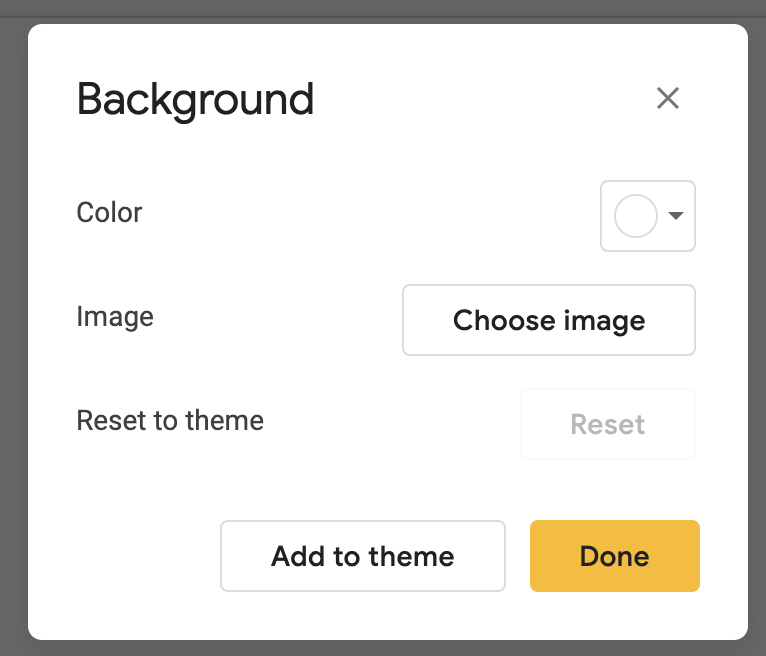
Open Google Slides and remove any text on the slide.


Right click (or two finger tap on the track pad of your chromebook)
Click on "background" then "choose image."
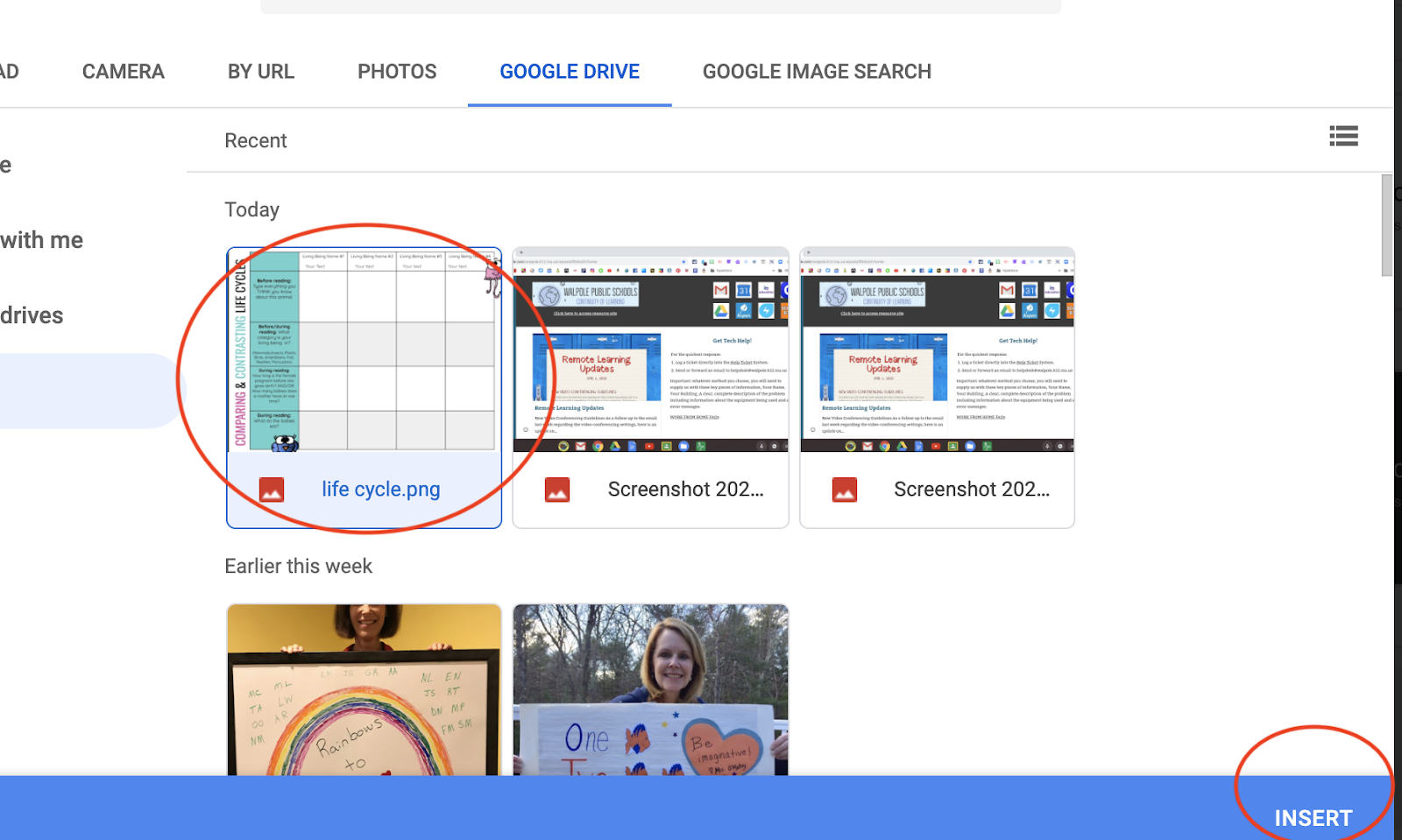
Choose the image you just saved to Google Drive and "insert."
Now your image is locked on the screen
Add as many text boxes as you like by clicking on "insert" and then "text box"
where you want your students to write.
To share with students, assign this Google Slide with Google Classroom.
Make sure to choose the "make a copy of each student" option from the
drop down menu. Now your PDF is a virtual worksheet!


Thursday, April 16, 2020

3 Ways to See Your Students While You Are Presenting Your Screen in Google Meet

Eric Curts has done it again with a great video to show 3 different ways you could see your students while presenting your screen in a Google Meet!  This has been a common question these days that we didn't have a solution for until now.  This video walks you through a couple of ways that would require using at least 1 other device or monitor, but he also has a solution for those of us with only 1 screen.  This is definitely worth a watch!


Tuesday, April 14, 2020

Virtual Whiteboards are Useful in Google Meets

This tutorial walks you through how to use Google's Chrome Canvas and Jamboard while you are in presenting mode during a Google Meet with students.


Monday, April 13, 2020

Mystery Science now links to Google Classroom

Mystery Science has now added a button to add the link to a specific lesson and video directly to your Google Classroom!  Teachers can still copy and paste the lesson and video links and send them to your students on a hyperdoc; however, if you use Google Classroom, you can easily add it directly from your Mystery Science account into your Google Classroom page.


Google Meet Meets Google Classroom

Google Meet is now integrated with Google Classroom.  Teachers can now generate a secure Google Meet link right from their Google Classroom page, and there is a Google Meet button within your students' Google Classroom to join the meeting directly!  This makes using Google Meet and Google Classroom so much easier.

Watch this tutorial on how to use Google Meet with a nickname and within Google Classroom.


Monday, April 6, 2020

It’s Time to Think Differently About the Way Things Have Always Been Done

😷JedTalks: Home Edition

😱What a difference a few weeks makes. A recent post I wrote talked about that “chasm” we've learned about between the early adopters of innovation in general, or edtech specifically.

😳Well, here we are.  We are ALL in the chasm, overwhelmed, unprepared and unsure of what this is all supposed to look like. We are in various states of remote-learning, extended-learning, distance-teaching, or enrichment. Our edu-world has changed itself. 

😏The common knock that gets thrown around (and rightfully so) is the risk of “changing for the sake of change.”  I think it’s safe to say that all of our recent shifts in our thinking and adjustments to our practice are for the sake of our students. The structures, the schedules, and the tools have changed, but look at what’s stated the same: the commitment to student, families, connection, and learning. 

It’s time to think differently 
about the way things have always been done. 

😬This pandemic is the ultimate equalizer.  We all find ourselves in a state of feeling overwhelmed, unprepared, and out of our comfort zones to access strategies or resources outside our normal instructional skill-sets.  I’ve learned a lot in the past few weeks, at a faster rate than I like, and I bet you have too!

😎Everyone is in the chasm, everyone is unsure of what’s best or what’s next. The best we can do is support ourselves and our families, connect with each other, and connect with families to support their kids first, and support learning second. I’ve been amazed and impressed by how many colleagues have already taken broader steps in the past few days than they have all year, through peer collaboration and district expectation, but more importantly through the need to reach their students. 

😟For educators who have felt reluctant or waited out edtech initiatives, the day has arrived to take the plunge, and your coaches are here to support you! This circumstance is not what any of us have prepared for, but thinking differently about the way we’ve always done things and finding solutions is exactly what we are here for. 

😊No one will do this perfectly, but we will all do what we do best: connect with kids, inspire learning like we always do, and reach out families who find themselves in equally uncharted waters. 

Video-Conferencing Guidelines

New Video Conferencing Guidelines

An important component of remote learning is the ability for teachers and students to connect in a virtual face-to-face environment via video-conferencing tools. Teachers may, at their discretion, opt to record these meetings and share them back with their students to provide equitable access to all students, and enable all to review the content of these meetings as needed. We do feel there is value, particularly at the secondary level, to provide this resource to students when appropriate.


Teachers will make an announcement to the class if the session will be recorded, If you do not want your child recorded during these meetings, please instruct your child to turn off/mute the video at that time.


Get Tech Support!

Here are the two ways to log a tech support request for the quickest response.

  1. Log a ticket directly into the Help Ticket System.
  2. Send or forward an email to helpdesk@walpole.k12.ma.us

Important: whatever method you choose, you will need to supply us with these key pieces of information, Your Name, Your Building, A clear, complete description of your problem including information about the equipment you are using and error messages you might be experiencing.

Tech Tips


  1. Split ScreenSee 2 different tabs side-by-side, great when you need to read instructions (like our Tech Tips below) AND be able to perform the actions
  2. Clear Browsing Data: if your device is running slow
  3. Reset Browser Settings: if your device is running slow or getting low memory messages
  4. Check Audio and Video Settings in Googleif you do not have audio or video in calls, you may have to select ‘Allow’ in your Google settings.